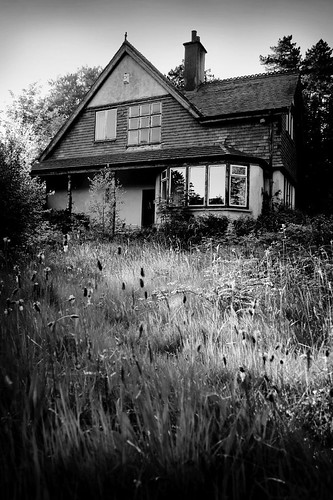
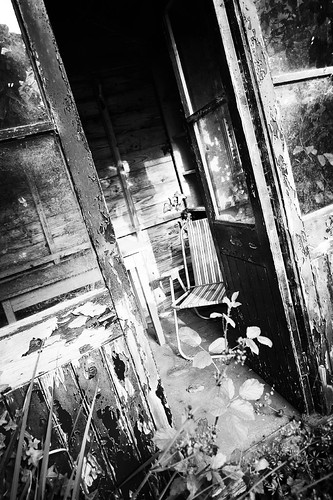
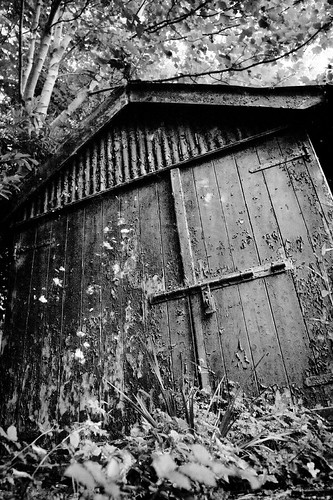
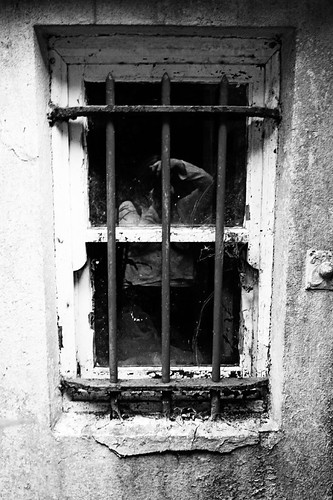
Every photographer seems to have their own way of converting their digital photographs into black & white depending on their style. I write this tutorial as a way to offer you just one way of doing it, certainly not the only way or the right way. I should also say that I like my black & white photographs to be just that…black and white. I suppose you could call it “high key” which not everyone likes. High key means that the image is high contrast or even over-exposed. So if you don’t like that kind of image, you may want to tone things down, but don’t worry, I hope this tutorial will show you that it’s easy to adjust to your own taste. I have a number of different things that I do to create different effects in my images but this is what I do when I just want to keep it plain and simple.
These instructions should be straightforward enough for a novice photoshop user although it presumes you’ve used Photoshop before and know a few of the terms like Layers and Opacity. No filters are used, just basic settings that should be in all versions of Photoshop (although I’m not sure about Elements since I’ve never used it).
So, without anymore faff and disclaiming, fire up Photoshop and give this a go: